

Define Wireless Local Area Network: A Clear, No-Jargon GuideA wireless local area network (WLAN) is a network that connects devices within a bounded area using radio-frequency signals instead of physical cables, governed by the IEEE 802.11 family of standards and commonly sold under the Wi-Fi brand name. If you've ever connected a laptop to your home router without plugging anything in, you've used one.
Three things to know right away:
- Where they appear: Homes, offices, school campuses, retail stores, hospitals, and public hotspots all run WLANs.
- Core components: Every WLAN needs at least one access point (AP) to broadcast the signal and one or more client devices (phones, laptops, tablets) to receive it.
- Why they matter: WLANs let multiple devices share a single internet connection and move freely within range, without a cable in sight.
Table of Contents
- What is a wireless LAN, and how does it differ from Wi-Fi?
- How does a WLAN work?
- What are the different types of WLAN modes?
- How WLAN architecture is organized: centralized vs. distributed
- Is a WLAN secure? Threats and how to protect your network
- WLAN vs. wired LAN: which one should you use?
- How to set up a basic WLAN at home or in a small office
- Common WLAN problems and how to fix them
- Real-world WLAN use cases you already know
- When should a business consider managed WLAN services?
- Key Takeaways
- The part most guides skip
- Useful sources and further reading
What is a wireless LAN, and how does it differ from Wi-Fi?
People use "WLAN," "Wi-Fi," and "wireless network" interchangeably, but they mean slightly different things.
A LAN (local area network) is any network confined to a limited geographic area, like a building or a floor. A WLAN is simply a LAN that uses radio frequencies instead of Ethernet cables to carry data. Every Wi-Fi network is a WLAN, but the reverse is not always true: some WLANs use proprietary radio protocols that predate or fall outside the Wi-Fi certification program.
Wi-Fi is a brand, not a technology. The Wi-Fi Alliance certifies that a product meets interoperability requirements based on IEEE 802.11 standards. The standard defines the actual radio and protocol rules; the Wi-Fi label tells you the device passed interoperability testing. Think of IEEE 802.11 as the engineering specification and Wi-Fi as the consumer-facing quality mark.
Common synonyms you'll encounter: wireless LAN, wireless network, Wi-Fi network, and occasionally WLAN. In phone settings, manufacturers often label the radio toggle "WLAN" rather than "Wi-Fi," especially on Android devices. They refer to the same thing.
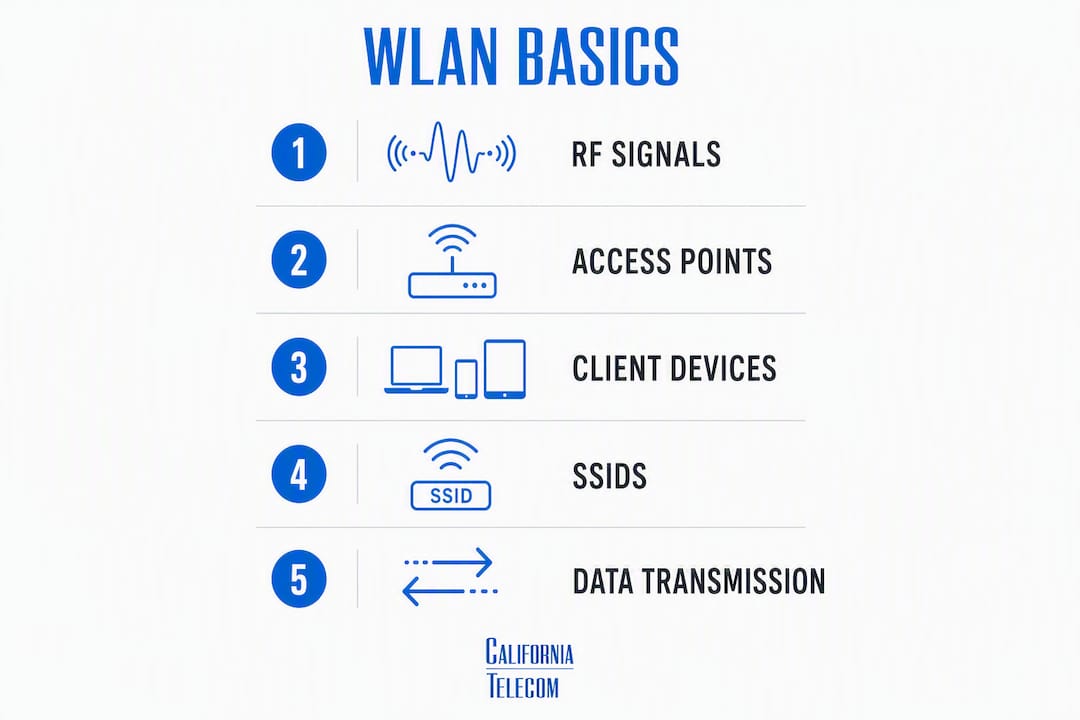
How does a WLAN work?
Four building blocks make a WLAN function: radio-frequency (RF) signals, access points, client stations, and SSIDs.
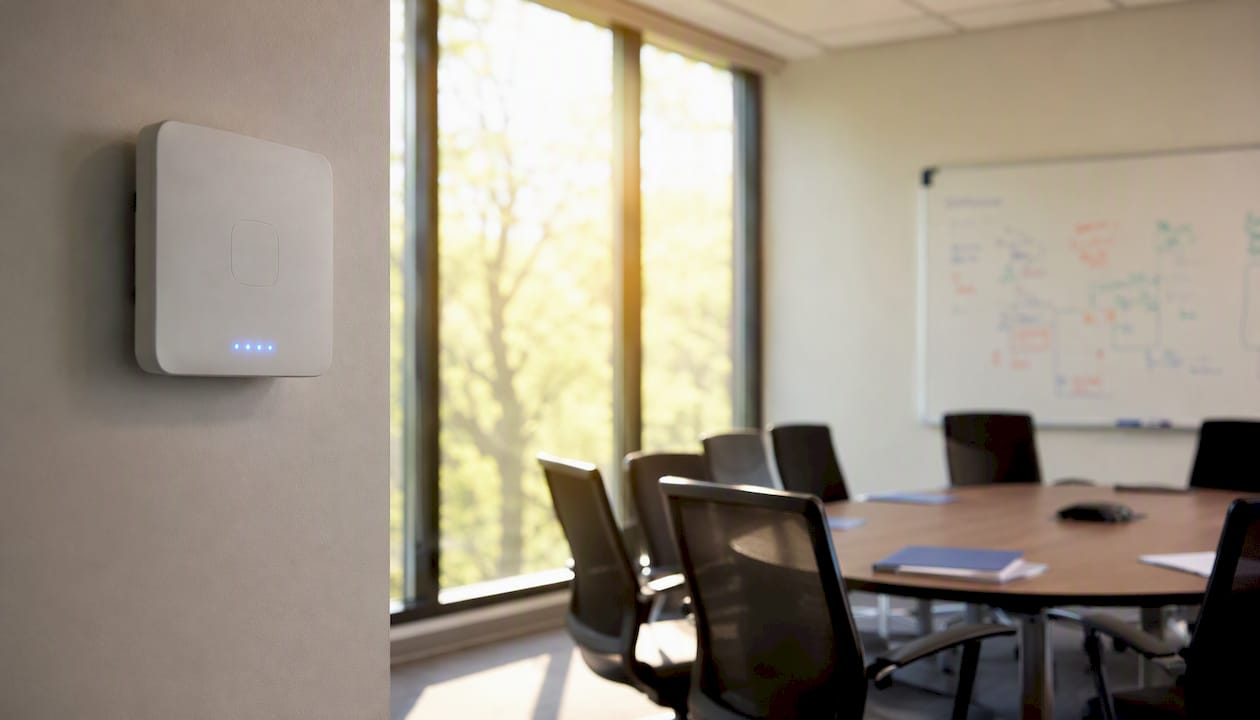
An access point broadcasts a named network (the SSID, or Service Set Identifier) on a specific radio channel. Client devices, called stations (STAs) in the IEEE spec, scan for SSIDs, pick one, and go through a brief handshake to join. Once associated, the client gets an IP address via DHCP and can reach the local network and the internet through the AP's wired uplink.
The shared radio medium creates a coordination problem: if two devices transmit at the same moment, their signals collide and both are lost. Wired Ethernet handles this with CSMA/CD (collision detection). WLANs use CSMA/CA instead, carrier-sense multiple access with collision avoidance, because a wireless device cannot detect its own transmission colliding with another. Devices listen before transmitting, wait a random backoff period if the channel is busy, and use acknowledgment frames to confirm delivery. It is less efficient than wired collision detection, but it works reliably across dozens of simultaneous clients.
Channels matter more than most people realize. The 2.4 GHz band has three non-overlapping channels in the U.S. (1, 6, and 11). The 5 GHz band offers many more, which is why modern dual-band and tri-band APs push capable devices to 5 GHz. Neighboring networks on the same channel compete for airtime, which slows everyone down.
Pro Tip: Use a free app like WiFi Analyzer (Android) or the Wireless Diagnostics tool built into macOS to see which channels your neighbors are using. Pick the least congested one for noticeably better throughput.
The client association process in brief:
- Probe/Beacon: The AP broadcasts beacon frames; the client sends probe requests.
- Authentication: The client authenticates using open or shared-key methods.
- Association: The AP assigns an association ID; the client is now on the network.
- DHCP: The client requests an IP address from the DHCP server (often the router).
- Gateway access: Traffic flows through the AP's wired uplink to the router and beyond.
What are the different types of WLAN modes?
Not every WLAN uses an access point. IEEE 802.11 defines two fundamental operation modes, and real-world deployments add two more architectural patterns on top.
Infrastructure mode is what almost every home and office runs. Clients connect to a central AP, which bridges wireless traffic to the wired network. All communication flows through the AP, even when two wireless devices are talking to each other. This is the most common model because it is easy to manage, scales predictably, and integrates cleanly with switches and routers.
Ad hoc mode (IBSS) removes the AP entirely. Devices connect directly to each other in a peer-to-peer mesh. You might see this in a field survey crew sharing files between laptops where no infrastructure exists, or in emergency-response scenarios where a network needs to form instantly without pre-installed equipment. It is flexible but limited in range and throughput.
Mesh networks take infrastructure mode a step further. Each node can relay traffic to the next, creating a self-healing web of coverage. If one node fails or is blocked, traffic reroutes automatically. Large venues, university campuses, and warehouses favor mesh because it fills coverage gaps without running Ethernet cable to every corner of the building.
Wireless bridging (WDS) connects two separate LAN segments over a wireless link, typically building-to-building. A retail chain might bridge a parking-lot kiosk network back to the main store switch using a directional antenna and a WDS link, avoiding the cost of trenching fiber across a parking lot.
How WLAN architecture is organized: centralized vs. distributed
Architecture describes how intelligence and control are distributed across the network. Two broad categories cover most deployments.

Centralized (controller-managed): A WLAN controller manages all APs from a single point, handling roaming decisions, radio resource management, and security policy enforcement. On-premises controllers are common on large campuses; cloud-managed controllers deliver the same capabilities without dedicated hardware on site. Centralized cloud-managed architectures are increasingly preferred by mid-market and multi-location businesses because they support zero-touch provisioning, meaning a new AP ships to a branch, gets plugged in, and pulls its configuration automatically.
Distributed (standalone APs): Each AP operates independently with its own configuration. This works fine for a single-room office or a home, but managing ten standalone APs across five locations quickly becomes a configuration nightmare. Firmware updates, security policies, and SSID changes must be applied to each device individually.
Key integration points to understand:
- Wired switch: APs connect to the LAN via Ethernet (PoE switches power APs over the same cable that carries data).
- Router/firewall: The router connects the LAN to the WAN (internet); the AP is not the router, though consumer combo units bundle both functions.
- Backhaul: The wired or wireless link between APs and the core network. Wired backhaul is always preferred for performance and reliability. For multi-location IT deployments, the backhaul design is often the first thing a network engineer evaluates.
Is a WLAN secure? Threats and how to protect your network
A WLAN can be very secure, but only when it is configured with modern standards and proper segmentation. The radio signal does not stop at your walls, which means anyone within range can attempt to connect or intercept traffic.
The evolution of wireless security standards:
- WEP (Wired Equivalent Privacy): Broken. Do not use it. WEP's encryption can be cracked in minutes with freely available tools.
- WPA/WPA2: WPA2 with AES-CCMP is the current baseline for personal networks. It is solid when paired with a strong, unique passphrase.
- WPA3: The current recommended standard. WPA3 introduces Simultaneous Authentication of Equals (SAE), which resists offline dictionary attacks even if someone captures the handshake. Enterprise networks should be migrating to WPA3 now.
- 802.1X/EAP (Enterprise authentication): Instead of a shared passphrase, each user authenticates with individual credentials against a RADIUS/AAA server. This means a departing employee's access can be revoked instantly without changing the network password for everyone.
The single biggest WLAN security mistake is running a flat network. When guests, employee devices, IoT sensors, and corporate systems all share the same SSID and subnet, a compromised guest device can reach your file servers. Proper guest network segmentation puts each traffic class on its own VLAN with firewall rules between them.
Common threats and immediate defenses:
- Eavesdropping: Mitigated by WPA2/WPA3 encryption; never transmit sensitive data on open networks.
- Rogue APs: An unauthorized AP plugged into your network by an employee or attacker. Detect with wireless intrusion detection (WIDS) or regular AP audits.
- Man-in-the-middle: An attacker sets up a fake AP with your SSID. WPA3's SAE and certificate-based enterprise auth make this significantly harder.
- Credential theft: Weak passphrases are brute-forced. Use 16+ character random passphrases and rotate them on a schedule.
Security checklist:
- Enable WPA3 (or WPA2-AES at minimum) on all SSIDs.
- Separate guest, IoT, and corporate traffic onto distinct VLANs.
- Disable WPS (Wi-Fi Protected Setup) on all APs.
- Change default AP admin credentials immediately after installation.
- Enable automatic firmware updates or set a monthly patch schedule.
- Audit connected clients monthly; remove unknown devices.
Pro Tip: Most enterprise-grade APs support scheduled firmware updates. Set them to run at 2 AM on a Tuesday. Manual patching creates long vulnerability windows; automation closes them without anyone having to remember.
WLAN vs. wired LAN: which one should you use?
Wired LAN consistently delivers higher throughput and lower latency than wireless. A gigabit Ethernet port delivers close to its rated speed with sub-millisecond latency and near-zero packet loss. A WLAN shares airtime across all clients, contends with interference, and adds protocol overhead. That said, running a cable to every device in a building is often impractical or impossible.
| Dimension | Wired LAN | WLAN |
|---|---|---|
| Throughput | Near line-rate, consistent | Shared, variable by client count and interference |
| Latency | Sub-millisecond | 1–10 ms typical; higher under load |
| Mobility | None (device must be cabled) | Full within coverage area |
| Reliability | Very high; no RF interference | Moderate; affected by walls, neighboring networks |
| Installation cost | Higher (cabling, labor) | Lower for initial deployment |
| Best use cases | Servers, desktops, VoIP phones, POS | Laptops, phones, tablets, IoT, guest access |
The practical answer for most businesses is a hybrid: wired backhaul and wired connections for fixed, high-demand devices (servers, desktop workstations, VoIP desk phones, point-of-sale terminals), with wireless access for mobile devices and areas where cabling is not feasible. For a deeper look at how enterprise WiFi compares to consumer-grade equipment, the hardware differences alone justify separate reading.
How to set up a basic WLAN at home or in a small office
The core steps are straightforward: pick the right hardware, place it well, configure security, and verify coverage before calling it done.
Setup checklist:
- Assess your space. Measure square footage and count the floors. A single AP typically covers a moderate area in open space; walls, especially concrete or brick, reduce coverage significantly.
- Choose hardware. A consumer combo router/AP works for a single-family home or a 1–5 person office. A business-grade AP with a separate router is worth the extra cost once you have more than 15 devices or need VLAN segmentation.
- Position the AP centrally. Mount it high on a wall or ceiling, away from microwaves, cordless phones, and metal shelving. Dead center in the coverage area beats tucking it in a corner every time.
- Connect the AP to your router via Ethernet. If you are using a combo unit, connect it to your modem or ISP gateway.
- Log into the admin interface. Change the default admin username and password immediately.
- Set your SSID. Use a name that does not identify your address or equipment brand.
- Enable WPA3 or WPA2-AES. Set a strong passphrase (16+ characters, random).
- Check and set the channel. Use a Wi-Fi scanner app to pick the least congested channel.
- Create a separate guest SSID if you will have visitors or IoT devices.
- Update firmware. Check for updates before you finish; manufacturers release patches frequently.
- Walk the space with a phone. Verify signal strength in every corner. If you find dead zones, add a second AP or a mesh node rather than a range extender (extenders halve throughput).
A basic home setup takes under an hour. A small office setup with multiple APs and VLAN configuration takes a few hours for someone comfortable with networking.
Common WLAN problems and how to fix them
Most wireless issues trace back to four causes: interference, poor AP placement, overloaded APs, or a configuration error. All four are fixable.
Before you call for help, reboot the AP. A surprising number of wireless problems, including slow speeds, dropped connections, and clients that cannot associate, resolve with a simple power cycle. It is not a permanent fix, but it tells you whether the problem is a transient software state or something structural.
Quick troubleshooting checklist:
- Check AP status lights. Most APs use LED patterns to signal normal operation vs. errors. Consult the manual for your specific model.
- Verify channel congestion. Run a Wi-Fi scanner. If your channel is crowded, switch to a less-used one.
- Count connected clients. Consumer APs start degrading noticeably with many simultaneous clients. Business-grade APs support a higher number of clients.
- Run a coverage walk. Walk the space with a phone and note where signal drops below two bars. That is where you need another AP, not a louder signal from the existing one.
- Check QoS settings. If VoIP calls are choppy but video streams fine, QoS may be prioritizing the wrong traffic class.
- Review band steering. Older devices that lock onto 2.4 GHz crowd that band. Enable band steering to push capable devices to 5 GHz.
When to escalate: Recurring outages affecting VoIP calls, point-of-sale terminals, or clinical systems are not a DIY problem. WiFi problems carry measurable financial costs in mission-critical environments. If you are troubleshooting the same issue more than once a month, or if an outage costs you real revenue, a managed service with 24/7 monitoring and SLA-backed response is the right answer.
Real-world WLAN use cases you already know
WLANs show up in almost every environment where people carry devices.
- Home networks: A single AP or mesh system covers the house. The main requirements are adequate coverage and a secure password. Most home networks run 10–30 devices once you count phones, tablets, smart TVs, and IoT gadgets like thermostats and cameras.
- Small office (1–20 people): One or two business-grade APs, a separate guest SSID, and VLAN segmentation for any payment terminals. A rough rule of thumb: one AP per 1,500 sq ft of open office space, adjusted for walls and device density.
- Enterprise campus: Dozens to hundreds of APs managed by a centralized controller. Seamless roaming (802.11r/k/v) lets a nurse or warehouse worker walk the entire building without dropping a VoIP call. Wi-Fi 7 is now entering enterprise deployments, delivering multi-gigabit speeds and lower latency for high-density environments.
- Retail guest hotspots: A captive portal on a separate SSID lets customers connect without touching the store's POS network. Proper segmentation is non-negotiable here.
- IoT sensor networks: Factories, hospitals, and logistics centers run hundreds of low-bandwidth IoT devices on dedicated SSIDs. These devices often use 2.4 GHz for range and stay on isolated VLANs to limit attack surface.
- WLAN on your phone: When your Android or iPhone settings show a "WLAN" toggle, it is the same thing as Wi-Fi. Manufacturers, particularly those following international conventions, use "WLAN" as the technical label for the same radio.
When should a business consider managed WLAN services?
Self-managed WiFi works for a small, stable single-site organization with dedicated IT expertise. It often breaks down during growth phases, when locations multiply, device counts climb, or the network starts carrying mission-critical VoIP or POS traffic.
The clearest signals that it is time to consider managed services:
- You have 5 or more locations and no centralized visibility into AP health.
- A wireless outage has directly cost you revenue or compliance exposure.
- Your IT team is spending more time on WiFi tickets than on strategic work.
- You are running consumer-grade hardware in a business environment.
- Security audits flag inconsistent configurations across sites.
Managed WiFi providers handle what most IT teams do not have time for: site surveys and RF design, commercial AP hardware procurement, 24/7 monitoring, automated firmware patching, guest and BYOD segmentation, and SLA-backed uptime. The financial model shifts from CapEx to OpEx, trading an unpredictable hardware refresh cycle for a predictable monthly fee that includes lifecycle management.
A 5–50 site retail rollout is a good example. Buying, shipping, configuring, and maintaining APs at each location in-house requires significant engineering time per site. A managed provider handles the site survey, ships pre-configured hardware, and monitors every AP from a central NOC from day one. Policy drift across sites, where each location ends up with slightly different security settings because someone made a local change, is one of the biggest hidden risks in self-managed multi-site networks. Centralized management enforces consistent segmentation, credential rotation, and access controls across every location automatically.
Pro Tip: When evaluating a managed WiFi provider, ask three specific questions: What is your mean time to detect and respond to an AP outage? What is your firmware patch cadence? Do you provide a dedicated NOC contact or a generic support queue? The answers tell you more than any SLA document.
Californiatelecom designs, deploys, and monitors managed WiFi for multi-location businesses nationwide, backed by a 24/7 U.S.-based NOC and a 99.99% uptime SLA. Every site goes through an RF design review before hardware ships, and ongoing monitoring catches issues before they become outages. For organizations evaluating managed network services or looking to consolidate carriers and vendors into a single provider, Californiatelecom's nationwide managed network services cover the full stack from WLAN to WAN to voice.***
Key Takeaways
A WLAN uses radio-frequency signals governed by IEEE 802.11 to connect devices within a bounded area, and its security, performance, and manageability depend almost entirely on how it is configured and maintained.
| Point | Details |
|---|---|
| Core definition | A WLAN connects devices wirelessly using IEEE 802.11 radio standards, commonly branded as Wi-Fi. |
| Security baseline | Use WPA3 (or WPA2-AES minimum), separate guest and IoT traffic onto VLANs, and patch firmware regularly. |
| Architecture choice | Cloud-managed, centralized architectures suit multi-site businesses; standalone APs work only for very small, single-site deployments. |
| Wired vs. wireless | Wired LAN delivers lower latency and higher consistency; use a hybrid approach for fixed devices and wireless for mobile ones. |
| When to go managed | Consider managed WLAN services when you have 5+ locations, mission-critical apps, or recurring wireless outages that cost real money. |
The part most guides skip
There is a gap between how WLANs are explained and how they actually fail in practice. Most explainers focus on the technology, which is fine, but the real problems in business environments are almost never technical. They are operational.
A network that was configured correctly two years ago is not necessarily secure or performant today. Firmware goes unpatched. A new employee adds a consumer AP in a conference room because the signal was weak. Guest and corporate traffic end up on the same VLAN because someone "temporarily" changed a setting and never changed it back. Each of these is a slow accumulation of risk that no one notices until something breaks or an audit flags it.
The practical principle worth remembering: a WLAN is not a one-time installation. It is an ongoing system that requires attention. For a home network, that means checking firmware quarterly and reviewing connected devices occasionally. For a business, it means having someone who owns the network, watches it, and responds when something changes.
The technology is genuinely not that complicated. The discipline of maintaining it is where most organizations fall short. Start with good placement and WPA3, and build the maintenance habit from there. If you are running multiple locations and that habit is not realistic with your current team, that is exactly what managed services exist to solve.
Useful sources and further reading
The sources below are the primary references used throughout this guide. Each covers a distinct aspect of WLAN technology, standards, or business application.
| Source | What it covers | Best for |
|---|---|---|
| IEEE 802.11 standards | Full MAC and PHY specification for WLANs | Engineers and standards researchers |
| IEEE Technology Navigator: Wireless LAN | Overview of WLAN radio engineering and CSMA/CA | Technical learners and students |
| Wireless LAN — Wikipedia | Accessible overview of modes, history, and terminology | General readers |
| IEEE 802.11 — Wikipedia | Standard family history, amendments, and Wi-Fi generations | Anyone mapping 802.11a/b/g/n/ac/ax/be |
| WLAN Components and Terminology — eTutorials | Detailed breakdown of APs, NICs, bridges, AAA servers | IT professionals and network students |
| What Is a WLAN Controller — Cisco | Controller-based architecture and campus deployments | IT decision-makers evaluating architecture |
| Business Case for Managed WiFi — We Solve Problems | Financial and operational case for managed WiFi | Business owners and IT managers |
| CapEx to OpEx — CoSN | Financial model shift from capital to operating expense | CFOs and budget planners |
| Managed WiFi vs Self-Managed — 1WireFiber | Practical comparison for business WiFi decisions | SMB and mid-market IT teams |