
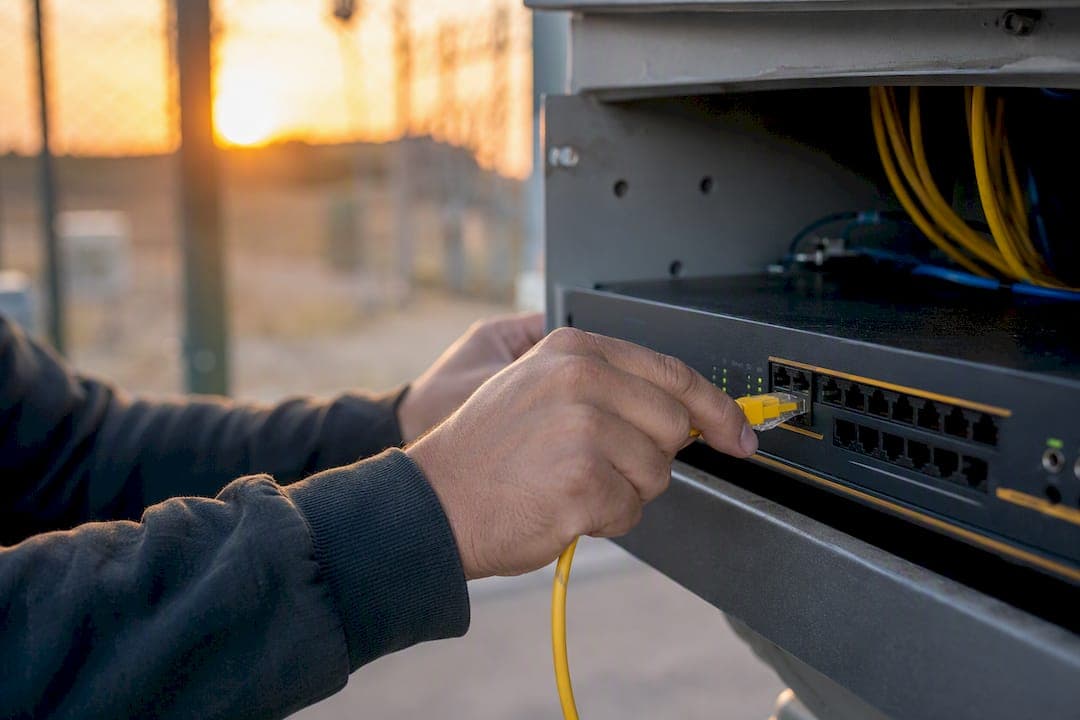
What Is a Speed Test? Quick Definition and How to Run OneA speed test is a diagnostic tool that measures how fast data moves between your device and the internet, reporting download speed, upload speed, and latency in a matter of seconds. If you want a real answer, not a guess, run one now: plug your device into the router with an Ethernet cable, close every other app and browser tab, and start the test.
A speed test tells you three core things. Download speed is how fast data arrives (streaming, browsing, downloads). Upload speed is how fast data leaves your device (video calls, cloud backups). Latency, or ping, is the round-trip delay that determines how responsive a connection feels.
What a single test cannot prove:
- Whether every website or app will perform identically to the test server
- Whether the slowdown you're chasing is your ISP, your router, or a single overloaded device
- Long-term reliability, since one snapshot doesn't capture peak-hour congestion or intermittent packet loss
Quick benchmark: A high-quality connection today typically hits at least 100 Mbps download and 20 Mbps upload, with ping under 30 ms and jitter under 5 ms.
Key Takeaways
A speed test measures download, upload, and latency in a single snapshot, and reliable results depend on wired connections, repeated runs, and recorded conditions.
| Point | Details |
|---|---|
| Definition matters | A speed test reports download, upload, and latency, sometimes jitter and packet loss too. |
| Test wired first | Ethernet isolates your true ISP speed before Wi‑Fi variables get added in. |
| Know the benchmarks | Good service today means 100+ Mbps down, 20+ Mbps up, ping under 30 ms. |
| Variance has causes | Wi‑Fi interference, device limits, and peak-hour congestion explain most swings. |
| Escalate with evidence | Multi-site variance or recurring packet loss calls for a managed LAN/WAN solution. |
Table of Contents
- What a Speed Test Actually Measures
- How Does an Internet Speed Test Work?
- How to Run a Speed Test That Actually Means Something
- What Counts as a Good Speed Test Result?
- Why Do Speed Test Results Change Every Time You Run One?
- What to Do When Your Speed Test Shows a Problem
- When Speed Test Results Signal It's Time for a Managed Network Provider
- HTML5, Apps, and Browser Tests: Does the Type of Speed Test Matter?
- A Speed Test Shows You a Moment, Not the Whole Picture
- Reputable Speed Test Tools Worth Bookmarking
- Frequently Asked Questions
- Sources
What a Speed Test Actually Measures
Every internet speed test is built around a handful of core metrics, and understanding what each one represents makes the results far more useful than a bare number.
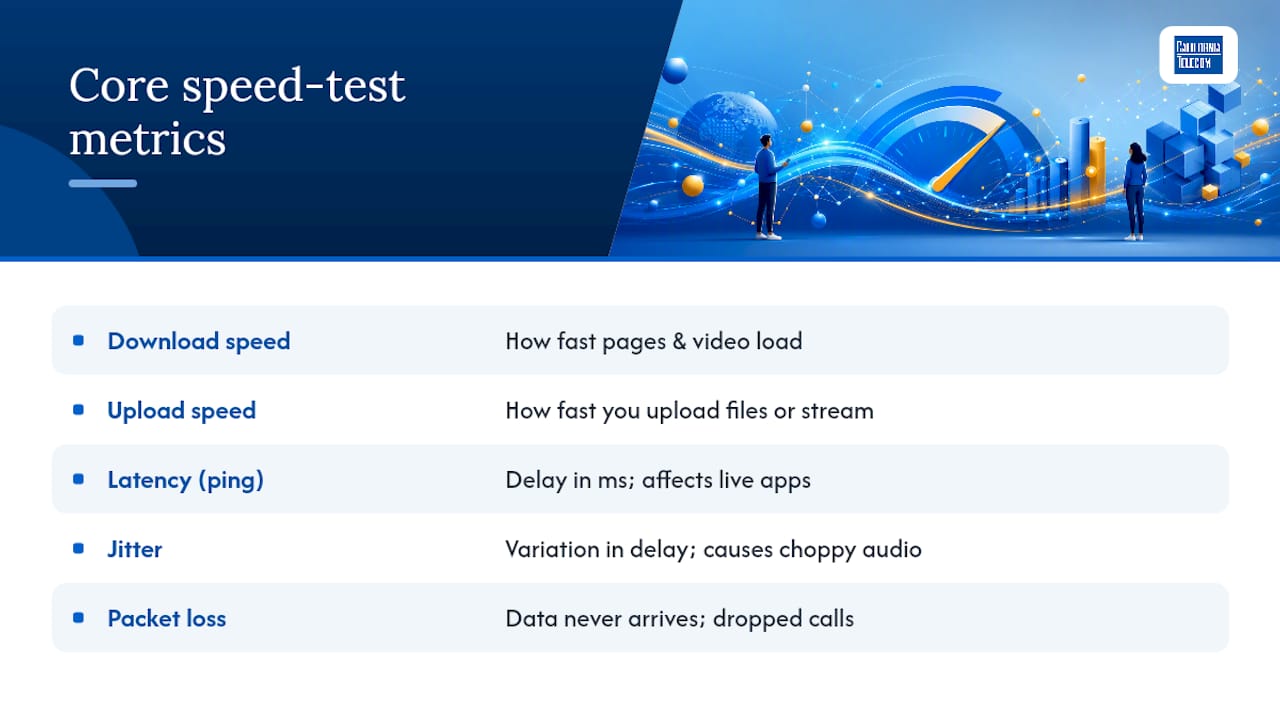
Download and upload speed are the two most familiar figures. Download governs how fast a movie buffers or a webpage loads; upload governs how fast you can send a file or broadcast video during a call. Most people notice download problems first, but upload shortfalls are what make video conferencing look frozen on the other end.
Latency, or ping, measures the delay between your request and the server's response, in milliseconds. It matters most for anything that happens live: online gaming, video chat, or voice calls, where even a 100 ms delay creates noticeable lag.
Jitter and packet loss are the metrics people overlook. Jitter is the variation in that delay from one packet to the next; high jitter causes choppy audio and stuttering video even when average latency looks fine. Packet loss is data that never arrives at all, and it shows up as dropped calls or frozen frames.
Download and upload show capacity. Latency, jitter, and packet loss show quality. A connection can have plenty of one and still fail at the other.
Most consumer test tools default to showing download, upload, and ping. Jitter and packet loss often require a second tab or an "advanced" view, which is exactly why so many people troubleshoot voice and video issues without ever checking the numbers that actually explain them.
How Does an Internet Speed Test Work?
A speed test starts by picking a nearby server, since testing against a data center on the other side of the country would measure network distance more than your actual connection. Server selection and load matter: a congested or distant server skews results low regardless of your line quality.
Once a server is chosen, the test sends small packets back and forth to measure latency, both at idle and while data is transferring. Idle latency shows your best-case delay; loaded latency shows what happens once your connection is actually working, which is often the more honest number.
Then comes throughput testing. Tests use multiple parallel streams rather than one single connection, because a lone TCP stream needs time to ramp up (called slow start) and will undercount a fast connection. Multi-stream tests reach sustained speed faster and read high-speed lines more accurately. The test then trims those early slow-start samples and reports the sustained average as Mbps.
| Step | What happens |
|---|---|
| Server selection | Picks a nearby, low-load server to isolate your connection |
| Latency probe | Measures idle and loaded round-trip delay |
| Parallel streams | Runs several simultaneous transfers to avoid slow-start undercounting |
| Sampling | Trims ramp-up data, averages the rest into a final Mbps figure |
- The reported number is throughput, not raw file size transferred
- Protocol overhead means real payload "goodput" runs slightly lower than the headline figure, which is why a 1 Gbps plan often tests at 940 to 980 Mbps
How to Run a Speed Test That Actually Means Something
Bad testing conditions produce bad data. A few minutes of setup turns a random number into something you can actually trust and compare over time.
- Connect your device directly to the router with an Ethernet cable when possible; Wi‑Fi introduces variables that have nothing to do with your ISP.
- Close background apps, browser tabs, cloud backups, and any device on the network that might be streaming or downloading.
- Pick a nearby test server (most tools choose one automatically) and run the test three to five times.
- Repeat at different times of day, including evening peak hours, to catch congestion patterns.
- Write down the results along with the time, device, server, and whether you tested wired or wireless.
- Run a wired test first to establish your true ISP-delivered speed
- Run a Wi‑Fi test separately to measure what your home network is actually delivering to devices
- Wi‑Fi alone can show only 30 to 60 percent of your real line speed depending on distance and interference
- Test again during a reported issue, not just when things feel fine, so you capture the problem in the act
What Counts as a Good Speed Test Result?
Numbers only mean something in context. Here's how to read them against what you actually do online.
Benchmark tiers:
- Good: 100+ Mbps download, 20+ Mbps upload, ping under 30 ms, jitter under 5 ms
- Acceptable: 25 to 100 Mbps download, 5 to 20 Mbps upload, ping 30 to 80 ms, jitter 5 to 20 ms
- Poor: Under 25 Mbps download, under 5 Mbps upload, ping over 100 ms, jitter over 30 ms
Streaming HD video needs roughly 5 to 8 Mbps; 4K needs closer to 25 Mbps. Competitive gaming cares far more about ping and jitter than raw download speed. Video conferencing needs steady upload and low jitter more than it needs a triple-digit download number.
A single strong metric doesn't guarantee a good experience. A connection with excellent download speed but high packet loss will still drop video calls and stutter during games, because download capacity and connection quality are measuring two different things entirely.
Why Do Speed Test Results Change Every Time You Run One?
Run the same test twice in a row and you'll often get two different numbers. That's normal, and the causes are usually identifiable.
- Wi‑Fi signal strength and interference from walls, microwaves, or neighboring networks
- Device limits, since an older laptop's network card can bottleneck a fast connection
- Background apps, updates, and other devices competing for bandwidth
- Router age and load, especially on hardware more than four or five years old
- ISP congestion during peak evening hours
- Server distance and load on the test provider's end
- Test methodology itself: the number of parallel streams and server choice change what gets reported
Pro Tip: Change one variable at a time. Test wired, then test Wi‑Fi from the same spot, at the same time, on the same server. If only the wireless number drops, the problem is your network, not your ISP.
If your wired results stay consistently low across multiple days and times, that variance points to your ISP connection itself, not your home setup.
What to Do When Your Speed Test Shows a Problem
A slow result isn't the end of the diagnosis, it's the start of one. Work through the basics before escalating.
- Reboot the modem and router, then retest.
- Check for firmware updates on both devices.
- Inspect Ethernet cables for damage and reseat them.
- Pause cloud backups, auto-updates, and any other bandwidth-heavy background tasks.
- Retest wired to isolate whether the issue lives in your ISP connection or your local network.
- If wired speeds stay low across several tests and times, gather that data and bring it to your ISP as evidence, not just a complaint
- If Wi‑Fi is the weak link, move the router to a central location, switch to a less congested channel, or add access points for larger spaces
- Older devices can bottleneck even a fast connection, so test with more than one device before blaming the network
Repeated outages, chronic packet loss, or a business need for guaranteed uptime is when it's worth contacting a managed network provider instead of continuing to troubleshoot alone.
When Speed Test Results Signal It's Time for a Managed Network Provider
In-house fixes solve most single-location, single-device problems. But some patterns point to something bigger than a router reboot.
Consider a managed provider when you see: speed variance across multiple business locations, contractual SLA requirements your current setup can't guarantee, recurring packet loss that survives basic troubleshooting, or a need for carrier redundancy and SD‑WAN-style failover. A multi-location retailer seeing inconsistent speeds at three of five sites, for instance, usually has a carrier or configuration issue no amount of local rebooting will fix.
Pro Tip: Before calling a managed provider, collect test logs with timestamps, device types, server locations, and wired-versus-wireless results from each affected site. That evidence turns a vague complaint into a fixable ticket.
HTML5, Apps, and Browser Tests: Does the Type of Speed Test Matter?
Not every speed test works the same way under the hood, and knowing the difference explains why two tools can give you two different numbers for the same connection at the same moment.
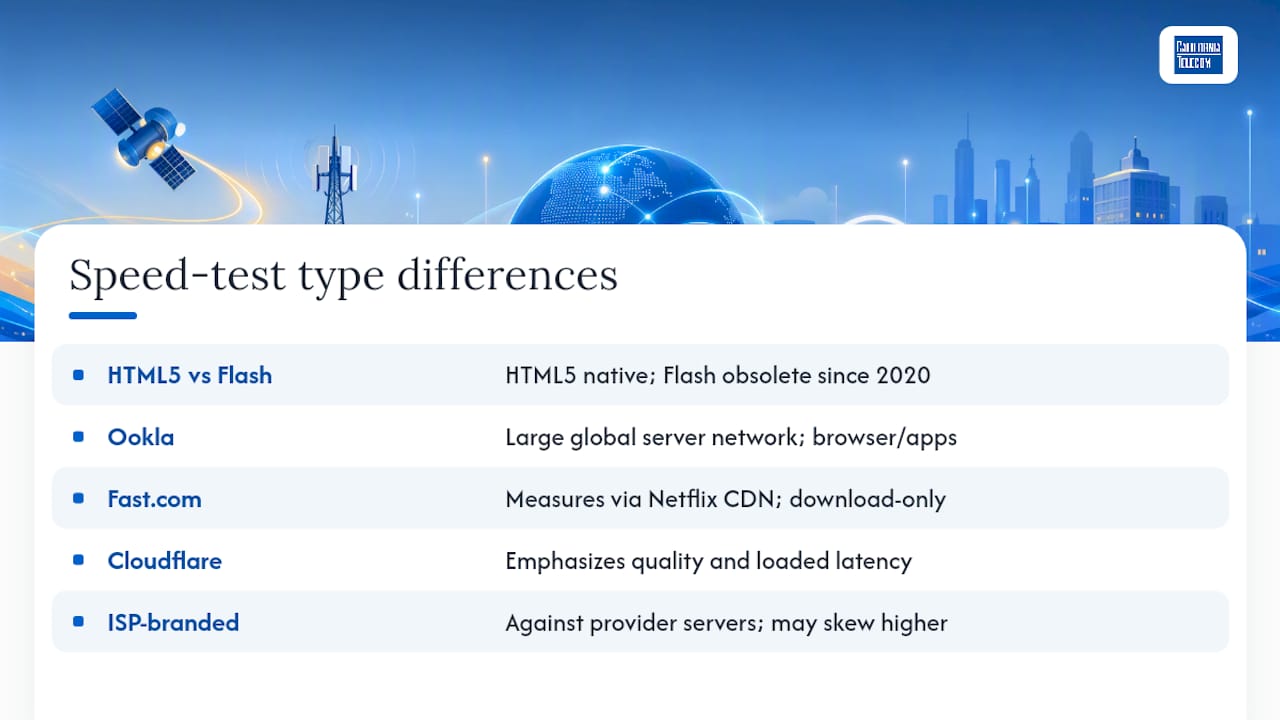
Older speed tests ran on Flash, which Adobe retired in 2020. Every major test tool has since moved to HTML5, which runs natively in modern browsers without a plugin and handles parallel streams more efficiently. If you land on a test that still asks you to install Flash, it's outdated and its numbers shouldn't be trusted.
Speedtest by Ookla is the most widely used browser and app-based test, with a large global server network that makes server selection easier in most locations. Fast.com, built by Netflix, takes a simpler approach: it measures download speed against Netflix's own content delivery network, which makes it a fast gut check but less detailed than tools that also report upload and latency by default. Cloudflare Speed Test takes a different philosophy entirely, emphasizing connection quality and loaded latency over pure peak throughput, which sometimes produces a more realistic picture of everyday performance than a test built purely to saturate your line.
ISP-branded tools like Spectrum's Internet Speed Test and Google Fiber's Speed Test measure against their own network's servers, which is convenient for checking whether you're getting what you pay for, though results can look better than third-party tests since the server is often closer.
Mobile apps add another variable: cellular data, device chipset, and even phone case interference with the antenna can all shift results compared to a desktop test on the same network.
A Speed Test Shows You a Moment, Not the Whole Picture
A speed test is a snapshot, not a full network audit, and treating it as gospel is where most people go wrong. Run it under controlled conditions, save the numbers with timestamps, and use that record as evidence if you ever need to escalate a real problem. For deeper troubleshooting on jitter and packet loss specifically, see California Telecom's guide to fixing choppy video calls.
Reputable Speed Test Tools Worth Bookmarking
- Speedtest by Ookla — the most widely used option, available as a browser test and mobile app with a large server network.
- Fast.com — Netflix's streamlined download-focused test, useful for a quick check.
- Cloudflare Speed Test — prioritizes connection quality and loaded latency over raw peak speed.
- Spectrum and GFiber (Google Fiber) speed tests — ISP-branded tools handy for checking your plan against their own network.
Run more than one, since methodologies differ enough that a single tool rarely tells the whole story. For businesses juggling results across multiple locations, California Telecom's nationwide managed network services can turn scattered test data into one accountable connection.
Frequently Asked Questions
What is a speed test used for? A speed test measures your internet connection's download speed, upload speed, and latency at a given moment, helping you confirm you're getting the service you pay for or diagnose a slowdown.
How accurate are speed tests? When run wired with background apps closed, most modern tests are accurate to within about 5 to 10 percent of your actual line speed. Wi‑Fi testing, older devices, or busy servers all reduce that accuracy.
Why does my speed test show different results every time? Wi‑Fi interference, background downloads, router load, server distance, and ISP congestion during peak hours all shift the number. Testing wired at the same time each day removes most of that noise.
What internet speed do I actually need? For HD streaming, 5 to 8 Mbps is enough. 4K video needs closer to 25 Mbps. Video conferencing and gaming depend more on low ping and jitter than on raw download speed.
Should I run a speed test on Wi‑Fi or wired? Run both. A wired test shows what your ISP is actually delivering; a Wi‑Fi test shows what your home network passes along to your devices, which is often noticeably lower.
Sources
- Gartner — Internet speed test (glossary)
- BandwidthPlace — Best internet speed tests (benchmarks)
- SpeedTestHQ — How a speed test works technically
- Cloudflare Blog — How Cloudflare's Speed Test really works
- Speedtest
Recommended
- What Is Network Throughput? A Clear Technical Guide | California Telecom
- The Speed of Certainty: How California Telecom Uses AI to Accelerate Support | California Telecom
- Bandwidth Issues: A Practical Troubleshooting Guide for IT Pros | California Telecom
- Broadband — Internet Services | California Telecom